







Your Printer is Not Broken, It’s Just Mean: 3 Common Frustrations & How to Fix Them
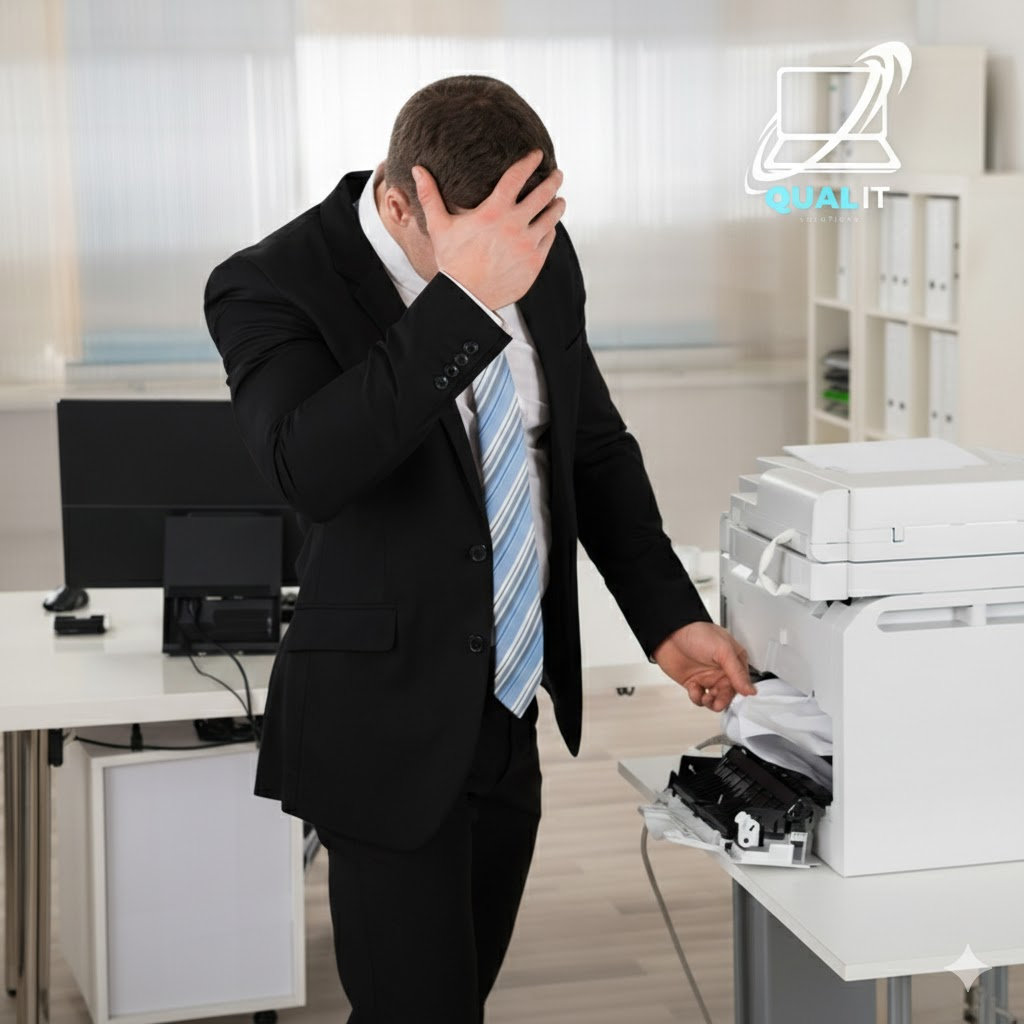
When you have a deadline in ten minutes, that is exactly when your printer decides to retire. We’ve all been there the flashing red light of doom, the mysterious “offline” status, and the paper jam that seems physically impossible.
Before you consider throwing it out the window, try these simple, jargon-free fixes.
1. “My computer says the printer is offline (but it’s sitting right there!)”
This is the most common “ghost” problem. Your computer and printer simply stopped speaking the same language for a moment.
Quick fixes:
- The “Magic” Restart: Turn off the printer, wait 10 seconds, and turn it back on. Do the same for your computer.
- Check the Queue: Open your printer settings and make sure “Use Printer Offline” isn’t checked by accident.
- The Wi-Fi Handshake: If it’s wireless, check if your phone can see the printer. If not, your Wi-Fi router might need a quick reboot.
2. The dreaded paper jam (when there’s no paper)
Sometimes a printer thinks it has a jam because a sensor is dusty or a tiny scrap of paper from 2022 is stuck in a corner.
Quick fixes:
- The Slow Pull: If there is paper, always pull it out slowly with both hands. Ripping it leaves those tiny scraps that cause future “ghost” jams.
- Check the Rollers: Open the back panel (if your model has one) and wipe the rubber rollers with a dry, lint-free cloth.
- Fan your paper: Before putting a stack of paper in the tray, “fan” the edges like a deck of cards to prevent them from sticking together.
3. “The ink is full, but the page is blank or streaky.”
If you don’t print often, the ink in the tiny nozzles can dry up and “clog” the exit.
Quick fixes:
- Run the “Clean” Cycle: Every printer has a “Clean Print Heads” setting in its maintenance menu. Run it twice.
- The Damp Cloth Trick: For some cartridges, you can take them out and very gently dab the bottom with a damp paper towel to “prime” the ink.
- Print a “Test Page”: Try to print one page a week (even just a few words) to keep the ink flowing and prevent drying.
Still can’t get it to work?
Don’t let tech stress ruin your day. At Qual-IT Solutions we specialize in making technology simple. Whether it’s a stubborn printer, a slow laptop, or Wi-Fi dead zones, our team is ready to help.
