







What to Do When Your Computer Won’t Turn On
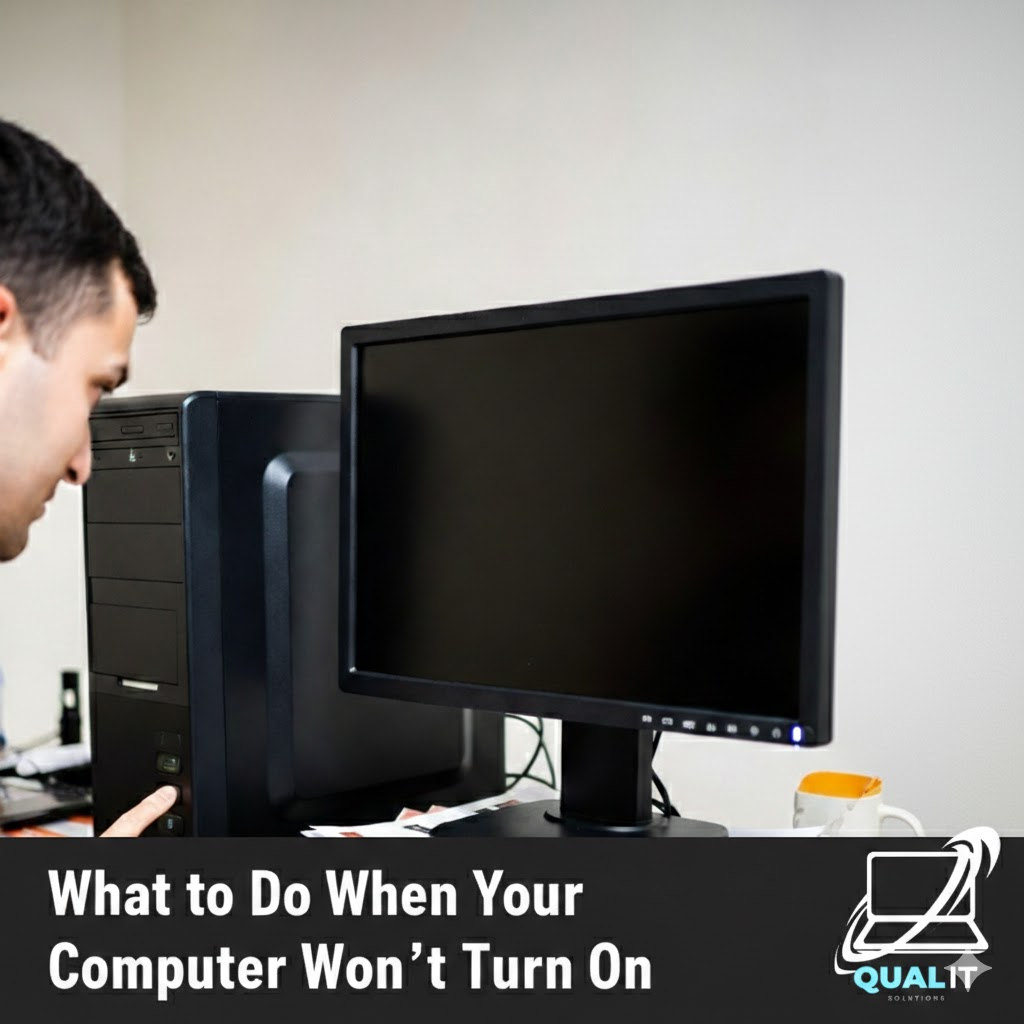
Check the power source, battery, display, external devices, and internal hardware step by step because most computers fail to start due to simple issues that can be fixed without professional repair.
When your computer refuses to turn on, it can be alarming, especially if you rely on it daily for school, work, or communication, but many startup problems are caused by basic power or hardware issues rather than serious damage, which means careful troubleshooting can often solve the problem quickly and safely.
Check the power source
Check the power source because a computer cannot start without electricity, so make sure the power cable is securely connected to both the device and the wall outlet, verify the outlet is working by plugging in another device, and if you are using a laptop, confirm that the charger is properly attached and the charging indicator light is on, since a loose cable or dead outlet is one of the most common reasons a computer will not turn on.
Inspect the battery and charger
Inspect the battery and charger because laptop batteries wear out over time and faulty chargers may fail to supply power, so if your laptop has a removable battery, try turning it on using only the charger, or test with another compatible charger to determine whether the issue is related to power delivery rather than the computer itself.
Check the display
Check the display because sometimes the computer is actually running but the screen is not responding, which can happen due to brightness settings, display failure, or loose connections, so look for signs of activity such as lights or fan noise, adjust brightness, or connect to an external monitor to confirm whether the problem is with the screen.
Disconnect external devices
Disconnect external devices because USB drives, printers, keyboards, and other accessories can occasionally interfere with the startup process if one of them is malfunctioning, and removing all external devices helps isolate the issue and allows the computer to start with only essential hardware connected.
Perform a hard reset
Perform a hard reset because temporary system glitches or power interruptions can prevent startup, and holding the power button for several seconds forces the system to shut down completely and clear minor errors, which may allow it to boot normally afterward.
Check internal hardware for desktops
Check internal hardware for desktop computers because loose components such as RAM, power cables, or expansion cards can prevent startup, and ensuring everything is properly connected may resolve the issue, although this step should only be done if you are comfortable opening the case and following safety precautions.
Consider professional repair
Consider professional repair if none of the steps work because the problem may involve serious hardware failure such as a damaged power supply, motherboard issue, or internal component malfunction, and a qualified technician can diagnose and fix these problems safely.
Knowing these troubleshooting steps helps you stay calm and methodical instead of assuming the worst, and in many cases you can restore your computer without expensive repairs simply by identifying the real cause of the startup failure.
Summary
If your computer will not turn on, check the power source, battery, display, external devices, and internal hardware because most startup issues are caused by simple problems that can be fixed step by step, while persistent failures may require professional assistance.
