







The Ultimate Guide to Cleaning Your Computer Without Destroying It

Let’s face it: we all love our computers, but we also know how quickly they can become the dumping ground for every snack, drink, and stray pet hair in our lives. Whether you’re a gamer, a student, or someone who spends a little too much time typing “funny cat videos” into YouTube, one thing’s for sure your computer is bound to get dirty. So let’s dive into the art of cleaning your computer in a way that won’t have you regretting it later!
Step 1: Gather Your Cleaning Supplies (And Your Nerves)
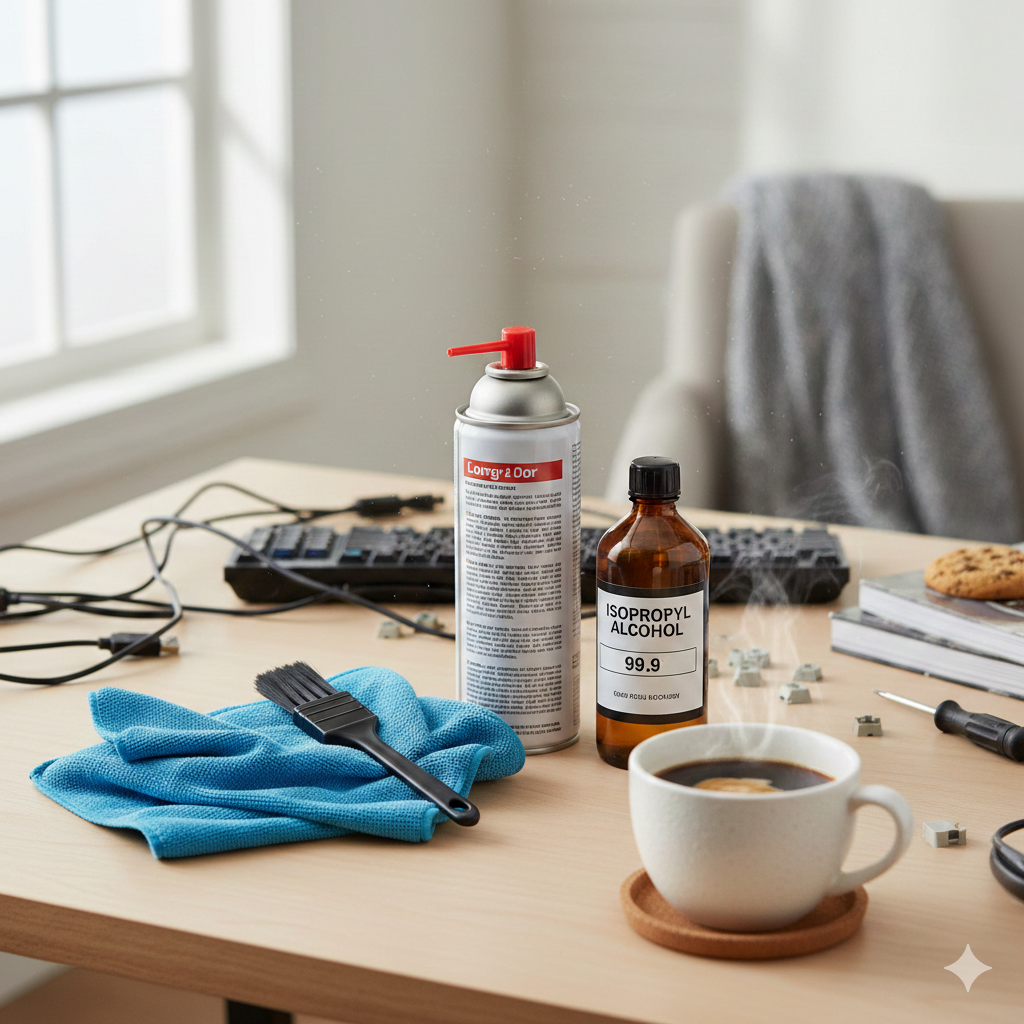
First things first: don’t panic. Cleaning your computer doesn’t require professional expertise or a degree in computer engineering. All you need is some basic cleaning supplies, a steady hand, and perhaps a comforting beverage. You’ll need:
- A microfiber cloth (because paper towels are for amateurs).
- A can of compressed air (your best friend in the war on dust).
- Some isopropyl alcohol (make sure it’s at least 70%, otherwise, what’s the point?).
- A small brush (for those hard-to-reach places, like the keys of your keyboard).
Before you start, take a deep breath. It’s not a surgery. Well, unless you’re dealing with a malfunctioning fan then it’s a bit of a crisis.
Step 2: Unplug Everything and Power Down (We’re Not Rebels Here)
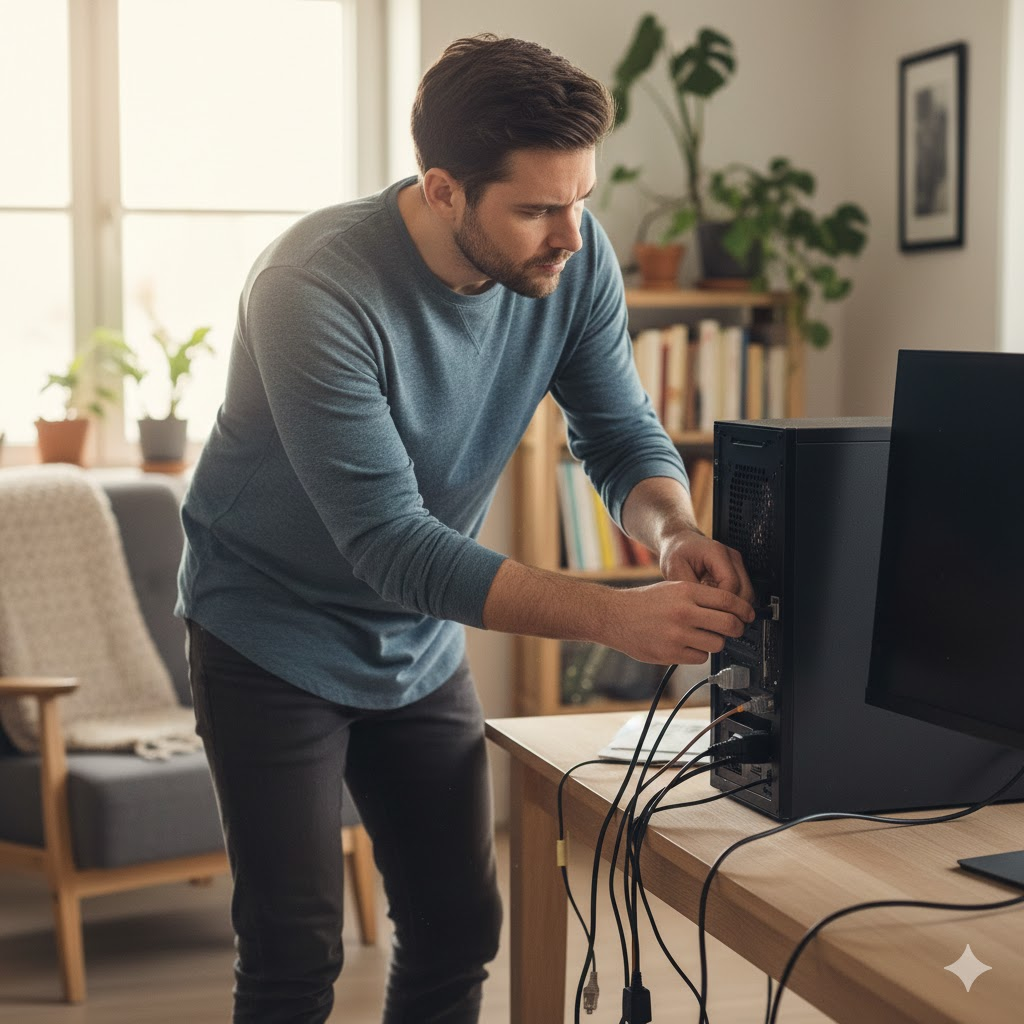
Don’t be that guy who dives in without turning off the computer. It might feel like an exciting act of defiance to leave everything plugged in, but trust me, this is one time when you definitely want to play it safe. You wouldn’t clean a blender with it plugged in, right? Same rules apply here.
After powering down, unplug everything, including the mouse, keyboard, and the life-support charger. Seriously, no one needs to be electrocuted today.
Step 3: The Keyboard – A Miniature Landfill of Crumbs and Secrets
Ah, the keyboard the area that’s constantly collecting crumbs from your “just one more” snack, and let’s not even talk about the coffee spill you’re trying to forget. It’s a delicate balance of dirt, grease, and mystery gunk. Here’s how to tackle it:
- Turn it upside down (and give it a shake). It’s like a little earthquake for your keyboard, but with much less devastation.
- Use compressed air to blow out all the crumbs, dust, and long-forgotten particles that have taken up residence. If it sounds like a windstorm, you’re doing it right.
- Take your microfiber cloth and gently clean the keys. If you’re feeling wild, use a bit of isopropyl alcohol for that sparkling finish. Just be careful not to soak it!
Bonus Tip: Don’t try to scrape things out with a knife or a crowbar. A gentle touch goes a long way. Trust me, you don’t want to be explaining that key you “accidentally” broke.

Step 4: The Screen – Don’t Use Windex. Ever.
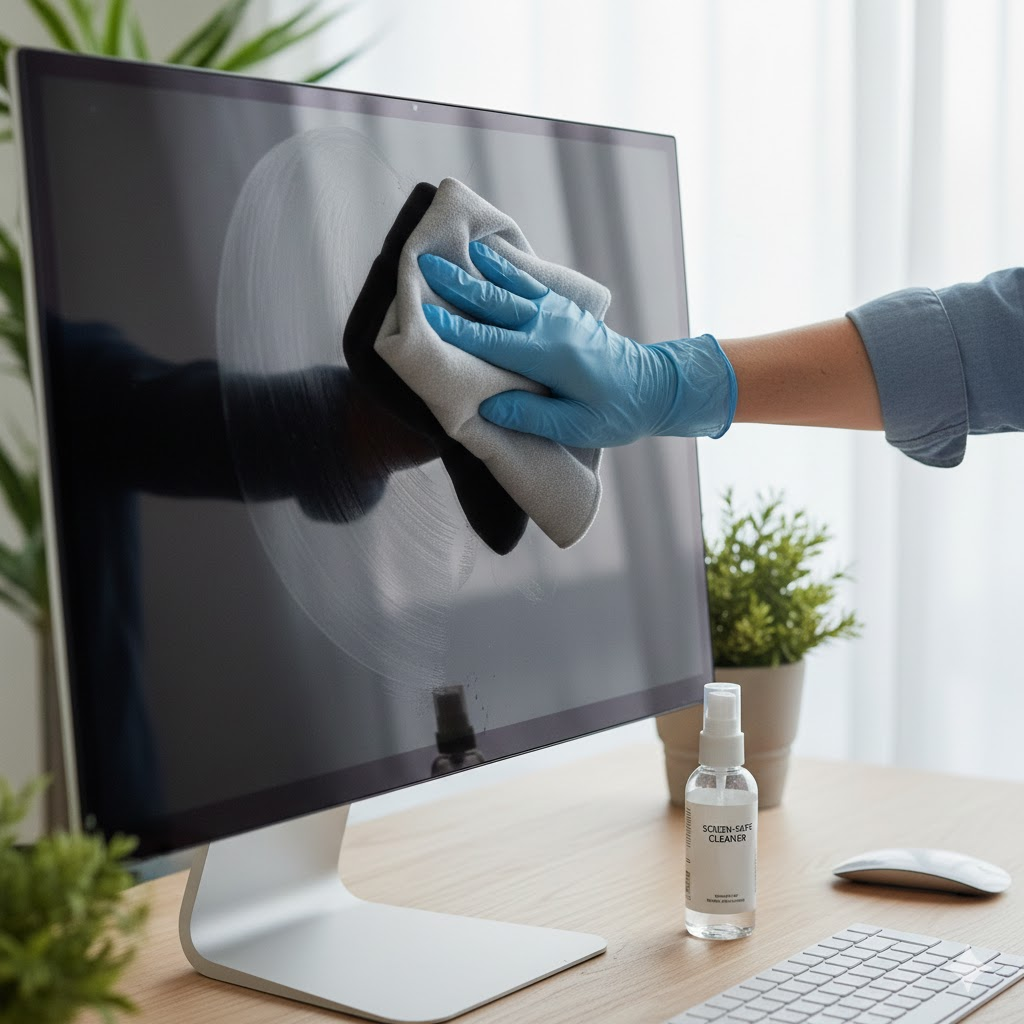
It’s tempting to grab the nearest bottle of Windex and go to town on your computer screen. But stop right there! This is a crime against electronics. Windex contains chemicals that can harm your display. Instead, get some screen-safe cleaner and a microfiber cloth. Lightly spritz the cloth (not the screen) and gently wipe. Try to keep your fingers off the screen afterward. Nobody likes the smudged look, no matter how artistic it might seem.
Step 5: The Inside (Yes, You Have to Do This)
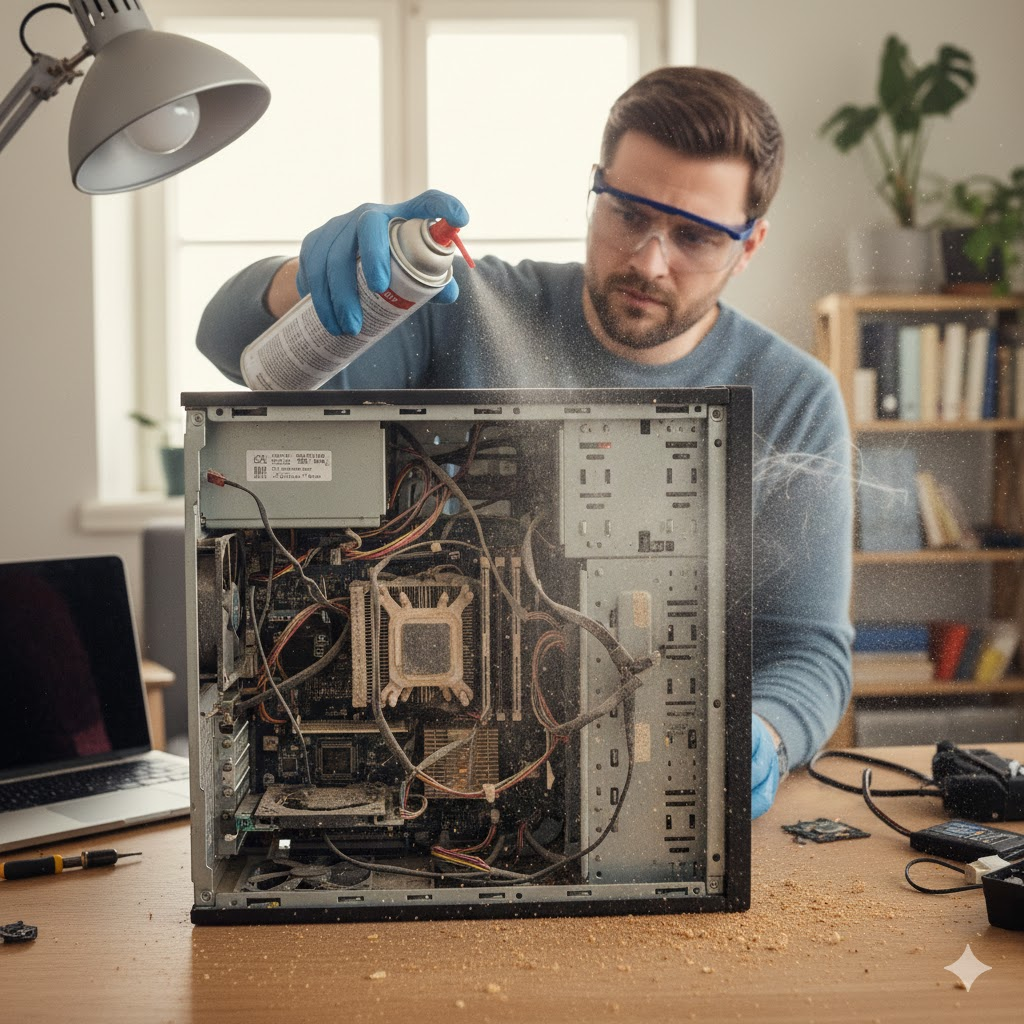
Okay, this step is for the braver souls among us: cleaning the inside of your computer. Here’s where you really get to show off your prowess. The main goal is to get rid of dust and dirt that can clog up fans and harm the overall performance.
- Turn off the computer and unplug everything! (remember, safety first).
- Open the case and gently blow compressed air inside. The fans are the primary target here, as they tend to collect dust like a magnet attracts metal shavings.
- Be careful not to touch any internal components. These parts are delicate and tend to be quite finicky about being handled.
And voila! The inside of your computer is as dust-free as a vacuum-sealed space capsule. You’ve done it.
Step 6: The Finish Line – Reassemble and Enjoy
Once you’ve cleaned all the components, it’s time to put everything back together and power up. Make sure to plug everything in, reconnect your mouse and keyboard, and power your machine back on. If all goes well, your computer should be running quieter, cleaner, and probably 5% faster (okay, that’s just wishful thinking). But hey, a clean machine is a happy machine.