







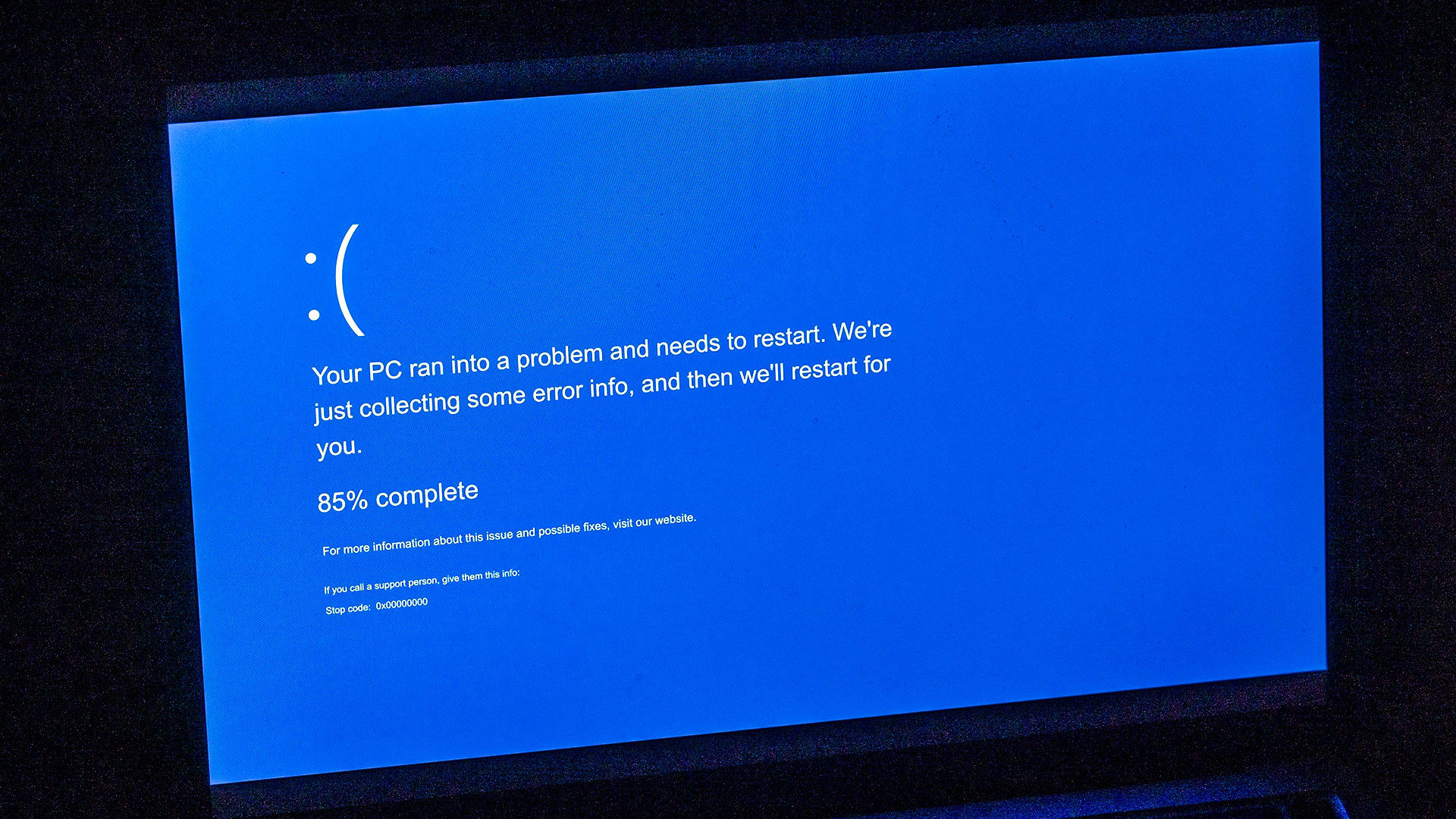
The Blue Screen of Death: What to Do When Your Windows PC Crashes
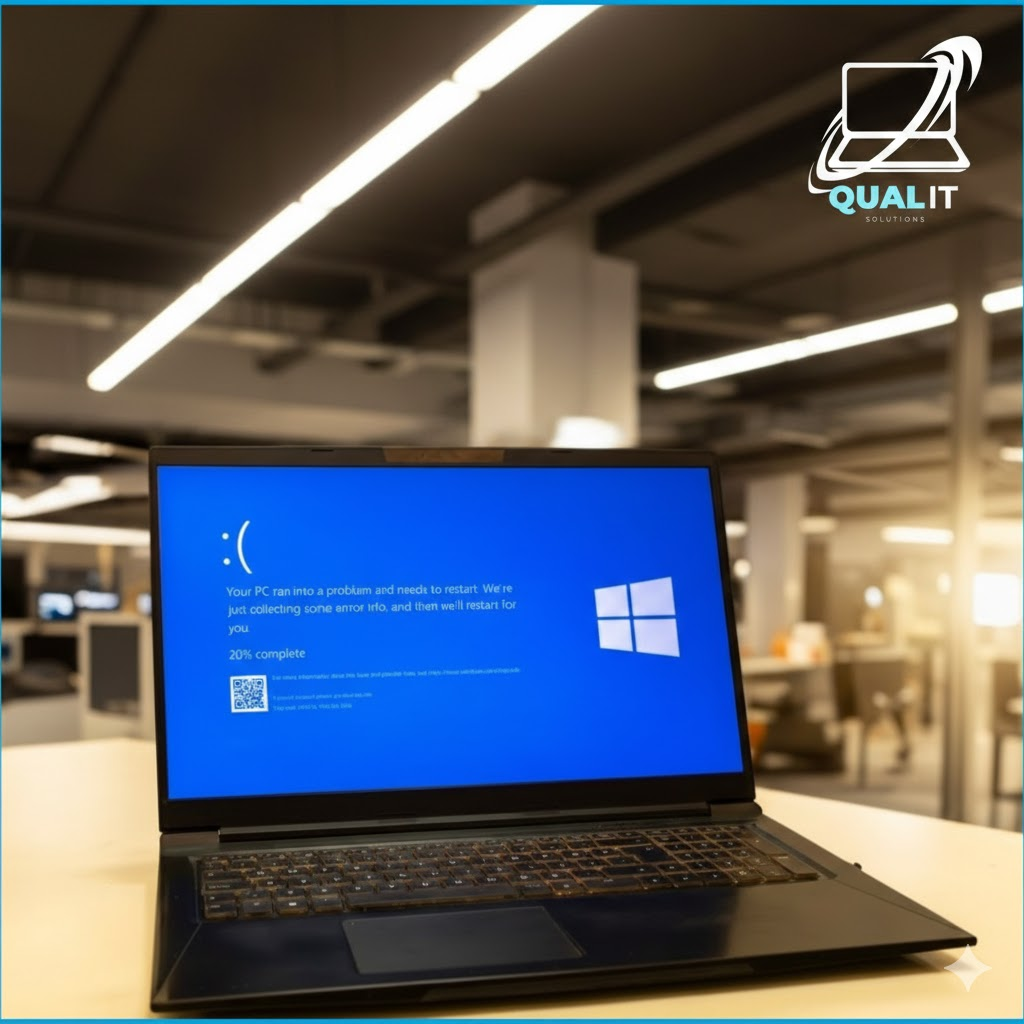
There’s nothing quite like the sudden, jarring sight of the “Blue Screen of Death” (BSOD). One minute you’re working, browsing, or gaming, and the next, your screen goes stark blue with a cryptic error message. It’s enough to make anyone panic and think their computer is gone forever.
But don’t worry! While intimidating, a BSOD often points to a fixable issue, not a dead PC. At Teko.ph, we’re here to guide you through the initial steps when Windows decides to throw a blue fit.
1. Don’t Panic! (And Take a Photo)
Your first reaction might be to immediately restart, but hold on! That blue screen actually contains valuable clues.
Quick Fixes:
- Take a picture of the screen with your phone. Pay close attention to the “Stop Code” (e.g.,
CRITICAL_PROCESS_DIEDorMEMORY_MANAGEMENT) at the bottom. This code is your computer’s way of telling you what went wrong. - Wait a moment. Sometimes, Windows will gather diagnostic information and automatically restart itself.
2. Disconnect Everything New
Often, a BSOD is triggered by something you recently plugged into your computer or a new piece of software you installed.
Quick Fixes:
- Unplug all external devices you don’t absolutely need: USB drives, printers, new webcams, gaming controllers, etc.
- Try restarting your PC. If it boots normally, plug your devices back in one by one to identify the culprit. The last one you plugged in before another crash is likely the problem.
3. Restart in Safe Mode
Safe Mode starts Windows with only the essential drivers and services. This is a crucial step for troubleshooting.
Quick Fixes:
- How to get there: If your PC can’t start normally, Windows will often automatically offer a “Troubleshoot” or “Advanced Options” screen.
- Navigate to Troubleshoot > Advanced options > Startup Settings > Restart.
- After restarting, press 4 or F4 for “Enable Safe Mode” or 5 or F5 for “Enable Safe Mode with Networking.”
- Once in Safe Mode:
- Uninstall recent software/drivers: If you installed something new just before the BSOD, uninstall it here.
- Run a System Restore: This can revert your PC to a previous state when it was working correctly (found in Advanced Options).
4. Check for Updates and Drivers
Outdated or corrupted drivers are a very common cause of BSODs.
Quick Fixes:
- Windows Updates: Go to Settings > Update & Security > Windows Update and check for pending updates. Install them.
- Driver Updates: Open Device Manager (search for it in the Start Menu). Look for any devices with a yellow exclamation mark. Right-click these and choose “Update Driver.”
- Graphics Drivers: Outdated graphics drivers are a frequent cause of BSOD, especially after gaming. Visit your graphics card manufacturer’s website (NVIDIA, AMD, Intel) to download the latest drivers directly.
Still Seeing Blue? Let Qual-IT Solutions Turn It Green.
If these steps haven’t banished the Blue Screen of Death, it might be a deeper hardware issue, a corrupted Windows installation, or something more complex. Don’t risk making it worse with guesswork.
At Qual-IT Solutions, our certified technicians specialize in diagnosing and fixing critical PC issues, including the dreaded BSOD. We can come right to your home or office, run advanced diagnostics, and get your computer running smoothly again.
