







Spilled Water on Your Laptop? Do This Immediately (The Rice Trick is a Myth!)
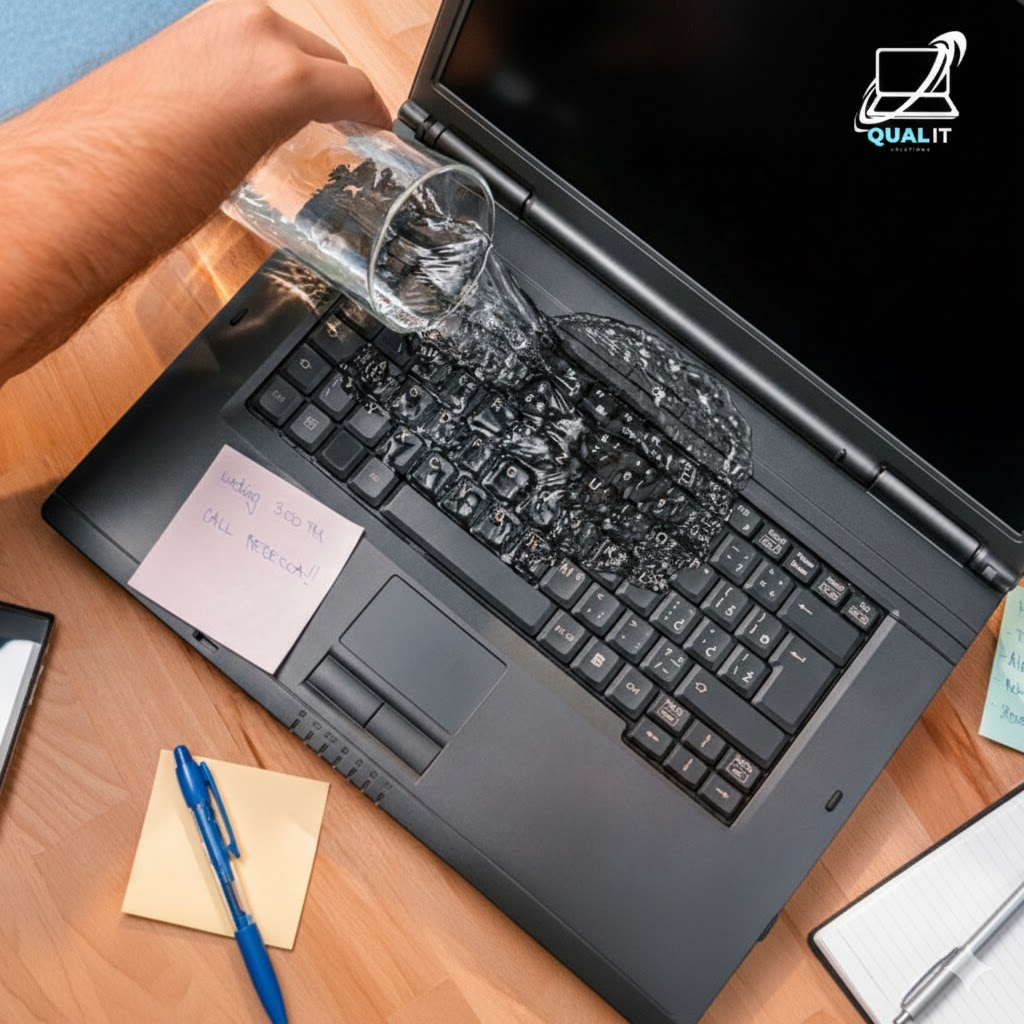
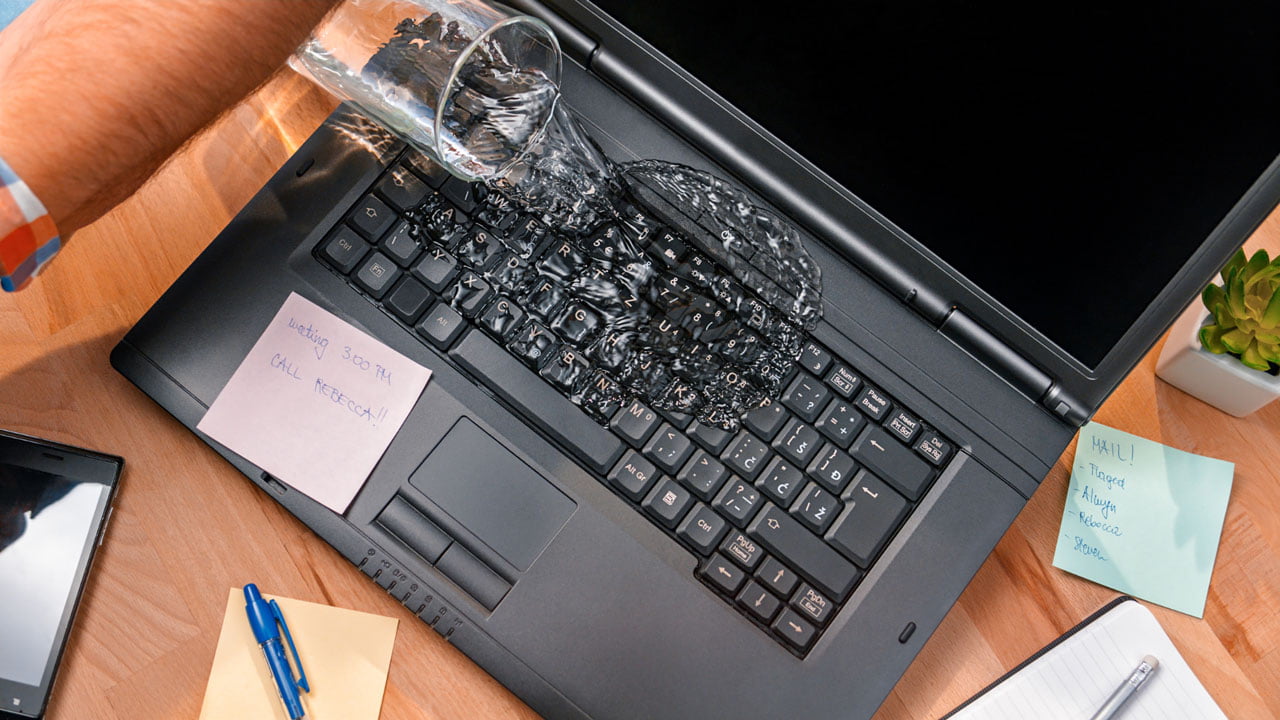
It’s the nightmare scenario: a slip of the hand, a tipped-over coffee, and suddenly your expensive laptop is soaking wet. Most people panic and reach for a bowl of rice, but that might actually be making things worse.
At Qual-IT Solutions, we’ve seen hundreds of liquid-damaged devices. If you act fast and follow these steps, you might just save your laptop from a permanent “short circuit.”
1. The 5-Second Rule: Power Off NOW
Don’t wait for Windows to “Shut Down” properly. Every second the power is running through wet circuits, the higher the chance of a permanent “short.”
Quick Fixes:
- Force Shutdown: Hold the power button down for a full 10 seconds until the screen and lights go black.
- Unplug Everything: Immediately pull out the charger, mouse, USB drives, and—if your laptop has a removable battery—take it out right away.
2. The “Tent” Position
Gravity is your best friend right now. You want to keep the liquid away from the motherboard (which is usually hidden under the keyboard).
Quick Fixes:
- Flip it over: Open your laptop as wide as it goes and place it face-down like a tent on a flat surface.
- Drain the liquid: This prevents the water from seeping deeper into the sensitive internal components and allows it to drip out through the keys.
3. Dry the Surface (But Skip the Hairdryer)
Use a lint-free cloth or paper towel to gently dab away any visible liquid on the keyboard, screen, and ports.
Quick Fixes:
- NO Hairdryers: The heat can melt your keyboard keys and blow the moisture even deeper into the machine.
- NO Rice: Rice doesn’t actually “pull” moisture out of a laptop. Instead, it leaves behind starch and tiny grains that can get stuck in your ports and fans, causing more damage.
4. Wait… and Don’t Test It Yet!
The biggest mistake people make is trying to turn the laptop back on too soon to see if it works. Even a tiny drop of water left inside can cause a spark that kills the motherboard.
Quick Fixes:
- Let the laptop air-dry in the “tent” position for at least 24 to 48 hours.
- Keep it in a dry area with good airflow (a fan helps, but don’t point it too close).
Don’t Risk a Short Circuit Call the Experts
Even if a laptop “works” after drying, liquid leaves behind minerals that cause corrosion over time. This means your laptop could fail weeks from now without warning.
At Qual-IT Solutions, we provide professional liquid-damage cleaning. Our technicians can safely open your laptop, clean the internal boards with specialized chemicals, and ensure your data is safe.
