







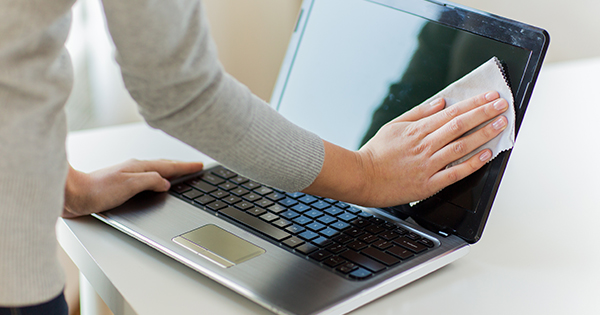
Is Your Laptop Choking? The Danger of DIY Deep Cleaning
When your laptop fans start sounding like a jet engine, your first instinct is to grab a can of compressed air. But before you spray away, you need to know that your laptop’s cooling system is tied to its most sensitive electronics. One wrong move doesn’t just move the dust—it can kill the hardware.
The Basic Hardware Protocol
To even begin a safe cleaning, the machine must be completely de-energized.
The Hardware Rule: Before opening your laptop or touching the cooling assembly, it is vital to disconnect the internal battery. Even if the laptop is “off,” power is still idling in the circuits.
Why DIY Cleaning is Riskier Than You Think
- The “Generator” Effect: If you spin a cooling fan with compressed air while it’s still plugged into a “live” motherboard (one with the battery connected), the fan can act like a tiny generator. It sends electricity backwards into the motherboard, which can pop delicate capacitors.
- Static Discharge: Fans and heat sinks are magnets for static. Without properly isolating the power by removing the battery, a static shock can jump from your hand to the motherboard’s logic chips.
- Thermal Paste Sensitivity: The seal between your processor and the copper heat sink is fragile. Breaking that seal without the right tools or a “clean” power environment can lead to instant overheating upon restart.
Know When to Call a Pro
While blowing a little air into the side vents is okay for maintenance, a Deep Clean requires:
- Full battery isolation.
- Precision removal of the thermal assembly.
- Professional-grade non-conductive paste application.
If your laptop is running hot, don’t risk a motherboard short-circuit. Our team Qual-IT Solutions handles the delicate hardware disconnection and deep cleaning so you don’t have to worry about a “simple” fix turning into a total replacement.
