







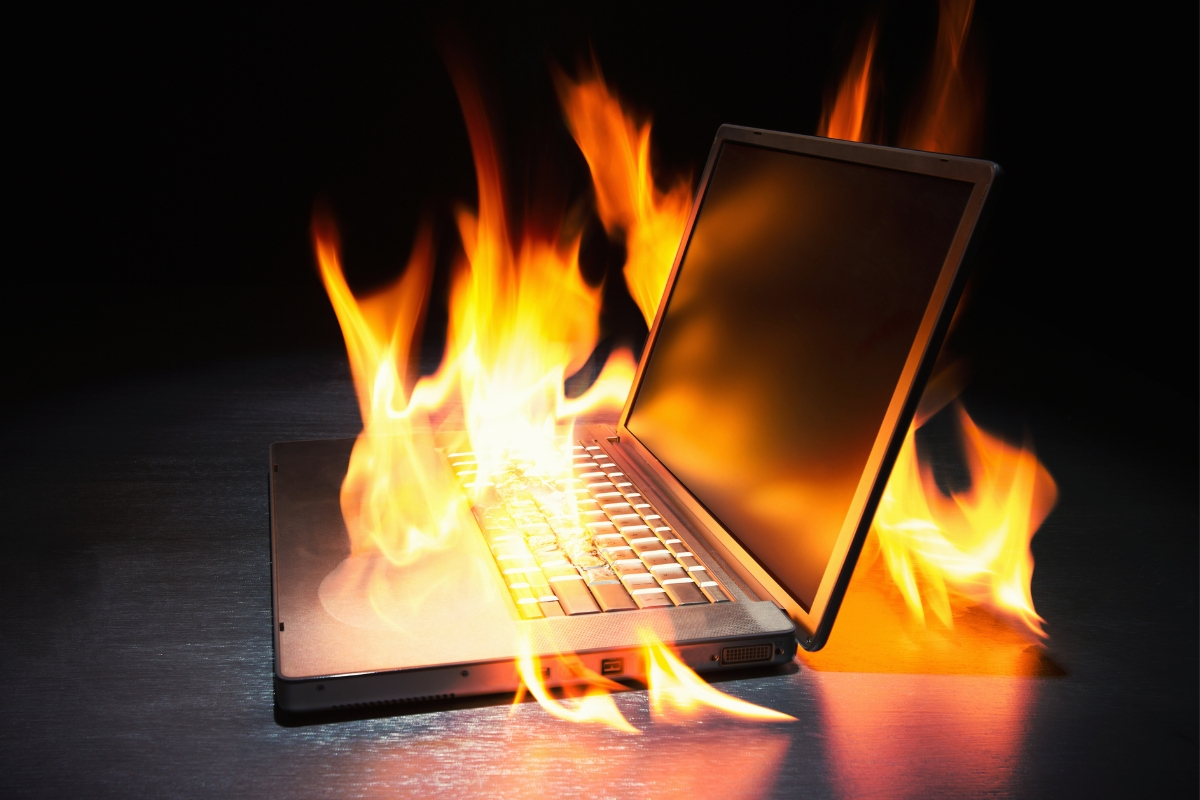
Is Your Laptop Burning Hot? 3 Ways to Cool It Down
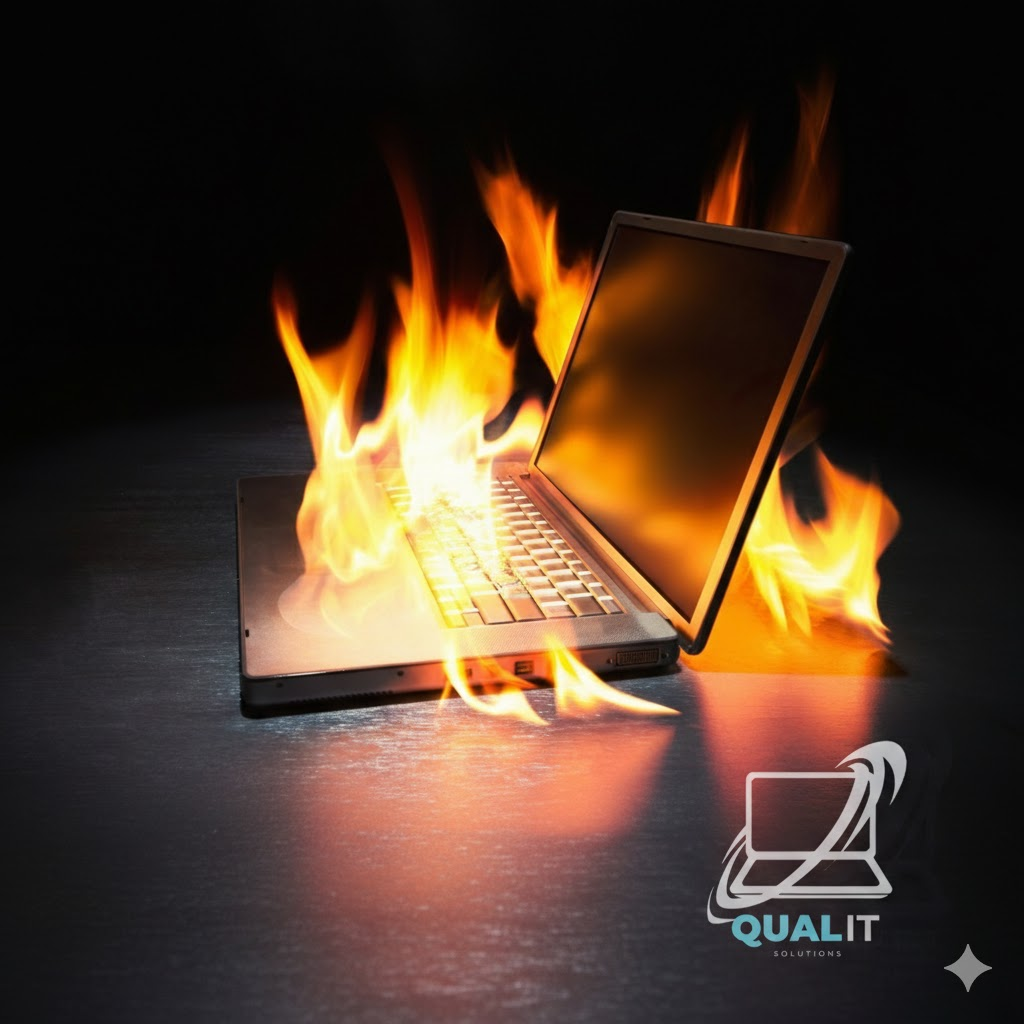
Have you noticed your laptop fan sounding like a jet engine? Or maybe the bottom of your computer feels hot enough to cook an egg?
When a laptop overheats, it doesn’t just get uncomfortable to touch—it slows down to protect itself (thermal throttling). If left ignored, extreme heat can permanently damage your processor. At Qual-IT Solutions, we want to help you keep your cool with these three easy fixes.
1. The “Soft Surface” Trap
The most common reason for overheating is actually where you are sitting. Most laptops pull in cool air from the bottom and blow hot air out the sides.
Quick Fixes:
- Use a Hard Surface: Never use your laptop on a bed, pillow, or carpet. These soft surfaces “suffocate” the vents.
- The Bottle Cap Trick: If you don’t have a cooling pad, place two small bottle caps under the back corners of your laptop. This small lift creates a gap for much better airflow.
2. Clean Out the “Dust Bunnies”
Over time, the cooling fans inside your laptop act like tiny vacuum cleaners, sucking in dust and pet hair. This creates a “blanket” over your internal parts.
Quick Fixes:
- Use Compressed Air: Buy a can of compressed air from any tech shop. Give short bursts of air into the intake vents while the laptop is powered off.
- Avoid the Vacuum: Never use a household vacuum on your laptop; the static electricity can fry the sensitive components!
3. Manage Your “Heavy” Apps
Sometimes the heat isn’t coming from dust, but from your software. If too many apps are running at once, your CPU has to work overtime.
Quick Fixes:
- Check Task Manager: Press
Ctrl + Shift + Escand see which apps are using the most CPU. Close anything you aren’t using. - Browser Tabs: If you have 50 tabs open in Chrome, your laptop is working much harder than it needs to. Close the tabs you’ve finished with!
Still Running Hot? It Might Need New Thermal Paste.
If your laptop is over 2 years old and still running hot after cleaning the vents, the thermal paste (the gel that moves heat away from the processor) might have dried up.
Replacing thermal paste requires opening the laptop and can be risky if you aren’t trained. At Qual-IT Solutions, our technicians provide professional Internal Cleaning and Thermal Repasting to make your laptop run as cool as the day you bought it.
