






How to Protect Your Computer from Viruses and Malware: Essential Security Tips
In today’s connected world, your computer is constantly at risk from viruses and malware. One wrong click or downloading a suspicious file can put your personal data, finances, and privacy in jeopardy. But don’t panic with the right tools and practices, you can significantly reduce the chances of falling victim to malicious software. Here’s a simple guide to protecting your computer and keeping your data safe.
1. Install Reliable Antivirus Software
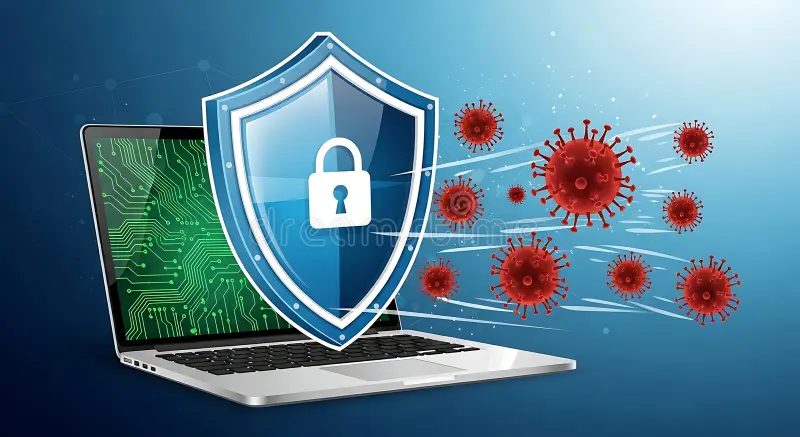
First and foremost, having solid antivirus software is your first line of defense against viruses, malware, and other online threats. Some of the most reliable free antivirus programs include Avast, AVG, and Bitdefender. For more comprehensive protection, paid options like Norton and Kaspersky offer premium features.
- Tip: Make sure your antivirus software is always updated and running in real-time to catch threats as soon as they appear.
2. Keep Your Software Updated
Software companies are always working to patch vulnerabilities in their programs. Whether it’s your operating system, browser, or specific apps, keeping everything up to date is one of the simplest ways to prevent malware from exploiting known security flaws.
- Tip: Set your software to automatically update whenever possible. This ensures that you’re always using the latest version with the latest security patches.
3. Enable a Firewall
A firewall acts as a barrier between your computer and the internet, blocking unwanted traffic that could potentially contain malware or viruses. Both Windows and Mac come with built-in firewalls, but you can also opt for third-party options for extra protection.
- Tip: Check your firewall settings regularly to ensure it’s enabled and working properly. A firewall can prevent malware from communicating with remote servers or other infected machines.
4. Be Careful with Emails and Attachments
Phishing attacks are one of the most common ways malware is delivered. Cybercriminals often disguise malicious emails as legitimate, asking you to click on a link or open an attachment that contains harmful software.
- Tip: Always double-check the sender’s email address before clicking on links or opening attachments. If an email feels suspicious, even if it looks official, don’t click especially if you weren’t expecting it.
5. Download Software from Trusted Sources
While it might be tempting to download software from random websites or pop-up ads, this is one of the fastest ways to introduce malware to your computer. Only download software from trusted sources like official websites, Google Play Store, or Apple App Store.
- Tip: If you absolutely need to download a program from a third-party website, do your research and check reviews to make sure it’s legitimate.
6. Use Strong Passwords and Enable Two-Factor Authentication
If a cybercriminal gains access to your passwords, they can wreak havoc on your personal information and accounts. Using strong, unique passwords for each of your accounts is vital in protecting your computer from unauthorized access.
- Tip: Consider using a password manager to generate and store complex passwords. Enabling two-factor authentication adds an extra layer of security to your accounts, making it harder for attackers to gain access even if they have your password.
7. Regularly Back Up Your Data
In case malware does sneak through, data backups can save you from losing valuable files and information. Use an external hard drive or a cloud service (like Google Drive, Dropbox, or OneDrive) to back up your most important files.
- Tip: Set up automatic backups so you don’t have to worry about forgetting to save your data. A regular backup ensures you can recover your information if your system gets infected.
8. Avoid Public Wi-Fi for Sensitive Tasks
Public Wi-Fi networks are notoriously unsecure, making it easy for hackers to intercept your data. Avoid conducting sensitive tasks like online banking or shopping when using public Wi-Fi.
- Tip: If you must use public Wi-Fi, consider using a VPN (Virtual Private Network). A VPN encrypts your internet connection, protecting your data from prying eyes.
9. Be Careful with Downloads and Pop-ups
When you’re browsing the internet, be cautious of pop-ups, ads, and download links that promise free software or services. Often, these are malicious traps designed to trick you into installing malware.
- Tip: Install an ad blocker to reduce the risk of encountering these pop-ups. And always verify the legitimacy of any file or program before downloading.
10. Use Safe Browsing Practices
Websites that aren’t properly secured can host malware, or worse, be a breeding ground for malicious software. Always look for HTTPS in the URL before entering sensitive information like passwords or credit card numbers.
- Tip: Avoid visiting questionable websites or clicking on suspicious links. A good web browser with built-in security features (like Google Chrome or Mozilla Firefox) can help protect you from malicious sites.
Stay Vigilant, Stay Safe
Keeping your computer free from viruses and malware requires a combination of the right tools and habits. By using antivirus software, keeping everything updated, being cautious online, and practicing good security hygiene, you can significantly reduce the risk of infection. And if the worst happens, remember: a good backup can save you from disaster.
Stay safe out there and game on! 🛡️💻