







How to Make Your Laptop Battery Last Longer
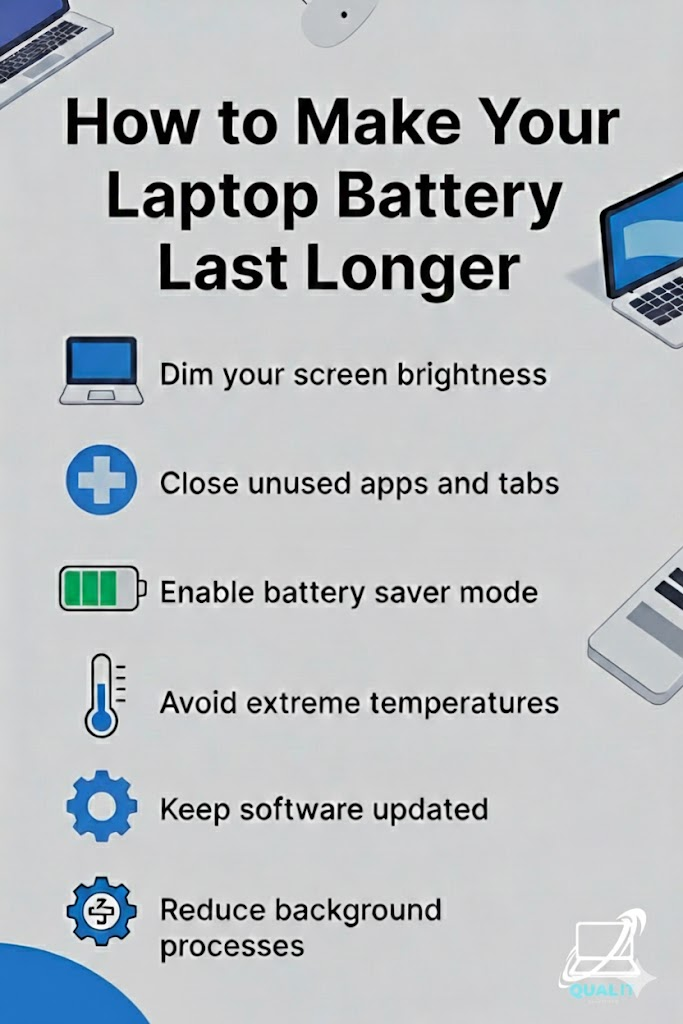
Lower brightness, close unused apps and tabs, enable battery saver mode, avoid extreme temperatures, keep software updated, and reduce background processes to maximize battery life and protect long-term performance.
Laptop battery life is crucial for productivity, especially for students, remote workers, and travelers who depend on their devices throughout the day, and while batteries naturally wear down over time, many cases of fast battery drain are caused by everyday habits and settings that consume more power than necessary, which means simple adjustments can significantly extend how long your laptop lasts on a single charge.
Dim your screen brightness
Dim your screen brightness because the display is one of the biggest power consuming components in a laptop, and using maximum brightness drains the battery much faster than needed, particularly indoors where high brightness is unnecessary, so lowering it to a comfortable level can noticeably extend usage time without affecting visibility.
Close unused apps and tabs
Close unused apps and tabs because programs running in the background, especially web browsers with many open tabs, continue to consume memory, processing power, and energy even when you are not actively using them, which increases battery drain, so shutting down anything you do not need helps reduce system workload and conserve power.
Enable battery saver mode
Enable battery saver mode because this feature automatically limits background activity, reduces system performance slightly, disables non essential visual effects, and optimizes settings to conserve energy, allowing your laptop to last longer when unplugged or when the battery level is low.
Avoid extreme temperatures
Avoid extreme temperatures because excessive heat can permanently damage battery cells and reduce their capacity while very cold conditions can temporarily decrease battery efficiency, so keeping your laptop in a cool, well-ventilated environment protects battery health and ensures consistent performance.
Keep software updated
Keep software updated because updates often include bug fixes, performance improvements, and energy optimizations that help your system run more efficiently, meaning it requires less power to perform the same tasks compared to outdated software that may drain the battery faster.
Reduce background processes
Reduce background processes because many applications and services run automatically without your awareness, such as cloud syncing, startup programs, and messaging apps, all of which use system resources and battery power, so managing startup settings and closing unnecessary background tasks can significantly extend battery life.
Practicing these habits daily not only improves how long your laptop lasts on each charge but also extends the overall lifespan of the battery, helping you avoid early replacements and keeping your device reliable for years.
Summary
To make your laptop battery last longer, adjust brightness, close unused programs, use battery saver mode, avoid extreme temperatures, update software, and limit background processes because controlling power usage is the key to both longer daily battery life and better long-term battery health.
