







Before You Panic: First Steps In Fixing Your Computer
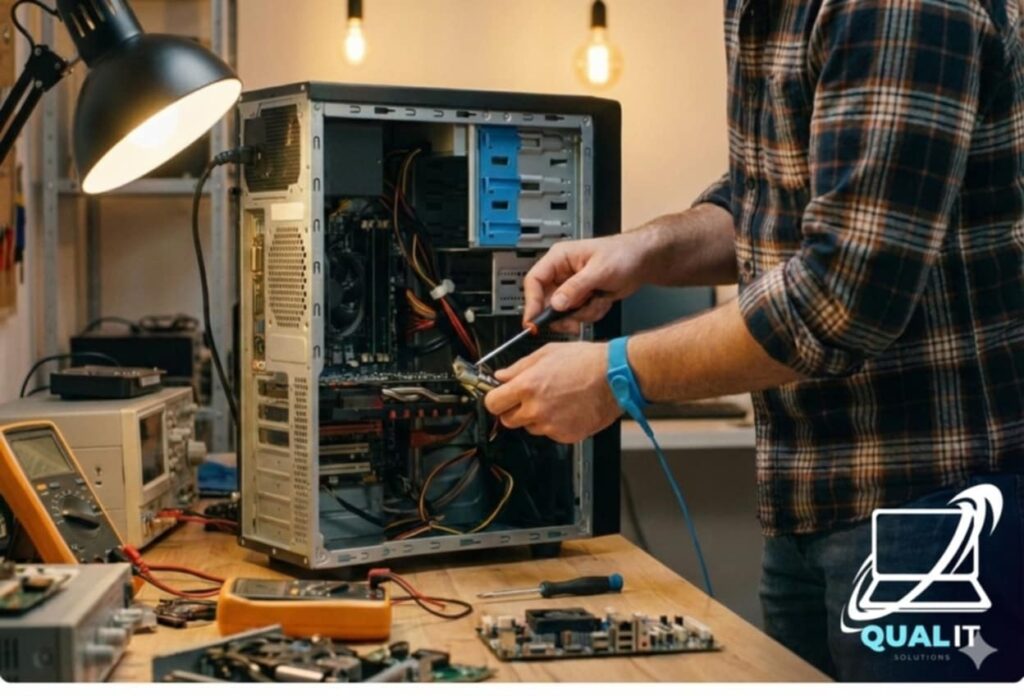
When your computer suddenly freezes, slows down, or refuses to connect to the internet, it can be frustrating especially if you’re in the middle of something important. The good news is that many common computer problems can be fixed with simple basic troubleshooting steps. Before rushing to a technician, try these practical solutions.
1. Computer Won’t Turn On
One of the most alarming issues is when your computer doesn’t power up at all.
What to Check:
- Ensure the power cable is securely plugged in.
- Check if the power outlet is working (try another device).
- For laptops, make sure the battery isn’t drained plug in the charger and wait a few minutes.
- Look for indicator lights or listen for fan sounds.
Sometimes, a loose cable or drained battery is the only issue.
Slow Performance
If your computer is running slower than usual, it may be overloaded.
Quick Fixes:
- Restart your computer to refresh the system.
- Close unused programs and browser tabs.
- Check Task Manager (Windows) or Activity Monitor (Mac) to see which apps are consuming the most memory.
- Delete unnecessary files and uninstall unused programs.
- Run a virus or malware scan.
Regular maintenance helps prevent slowdowns.
No Internet Connection
Internet problems are common but often easy to fix.
Quick Fixes:
- Restart your modem and router.
- Make sure Wi-Fi is turned on.
- Reconnect to the network or re-enter the Wi-Fi password.
- Check if other devices can connect—this helps identify if the issue is with your computer or the network.
- Run the built-in network troubleshooter.
Programs Not Responding
Sometimes applications freeze and stop working.
Quick Fixes:
- Wait a few seconds some programs just need time.
- Force close the program (Ctrl + Alt + Delete on Windows or Command + Option + Esc on Mac).
- Reopen the application.
- Check for software updates.
If the problem happens frequently, consider reinstalling the program.
Basic computer troubleshooting doesn’t require advanced technical skills just patience and a step-by-step approach. In many cases, restarting the device, checking connections, or updating software can solve the issue quickly.
If problems persist after trying these solutions, it may be time to consult a professional technician. However, learning these basic troubleshooting skills can save you time, money, and unnecessary stress.
Taking care of your computer through regular updates, antivirus protection, and proper shutdown practices will also help prevent future problems.
