







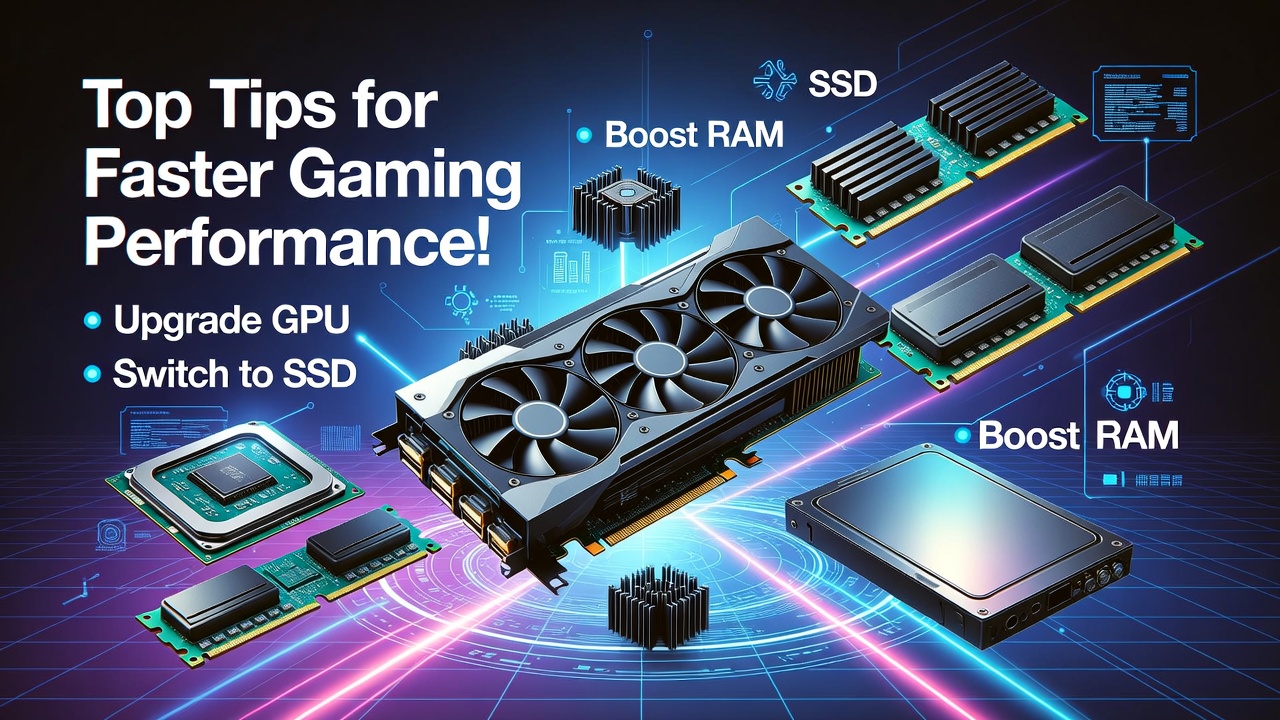
How to Optimize Your Computer for Gaming: Tips for Maximum Performance
Every gamer dreams of seamless gameplay, smooth frame rates, and epic graphics. But if your computer is struggling to keep up with the latest titles, don’t worry – optimizing your system for gaming doesn’t have to be rocket science. With a few key adjustments, your PC can go from laggy and sluggish to fast and powerful. Here’s how to get the most out of your gaming setup, whether you’re on a budget or ready to go all-in.
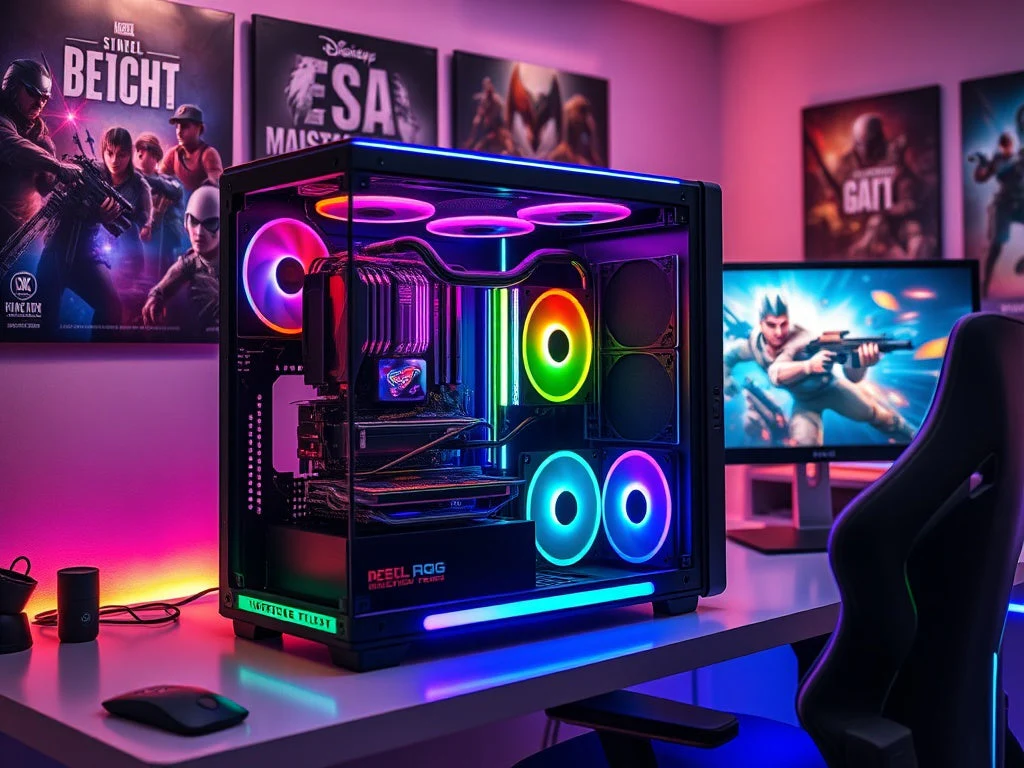
1. Upgrade Your Graphics Card (GPU)
Your graphics card is the heart of your gaming performance. If you want better graphics and smoother gameplay, upgrading your GPU can make a world of difference. For those on a budget, mid-range GPUs like the NVIDIA GTX 1660 or the AMD Radeon RX 580 are great options. If you want to experience 4K gaming, consider NVIDIA RTX or AMD RX 6000 series cards.
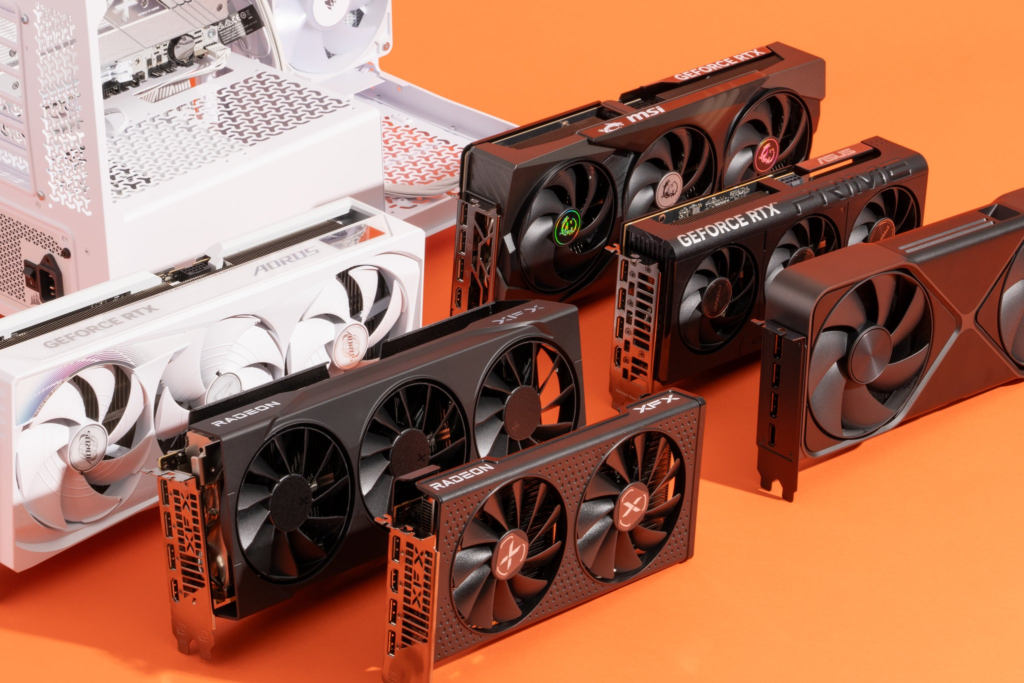
- Tip: Before upgrading, make sure your power supply (PSU) can handle the new GPU’s power requirements.
2. Optimize Your Display Settings
If you want smooth, responsive gaming, don’t just rely on the highest resolution settings. While 4K is great, it can often be more demanding than necessary. 1080p (Full HD) is the sweet spot for performance without sacrificing too much visual quality. Also, make sure your monitor’s refresh rate matches your GPU’s capabilities. A 144Hz or 240Hz monitor will give you a much smoother gaming experience compared to the standard 60Hz display.
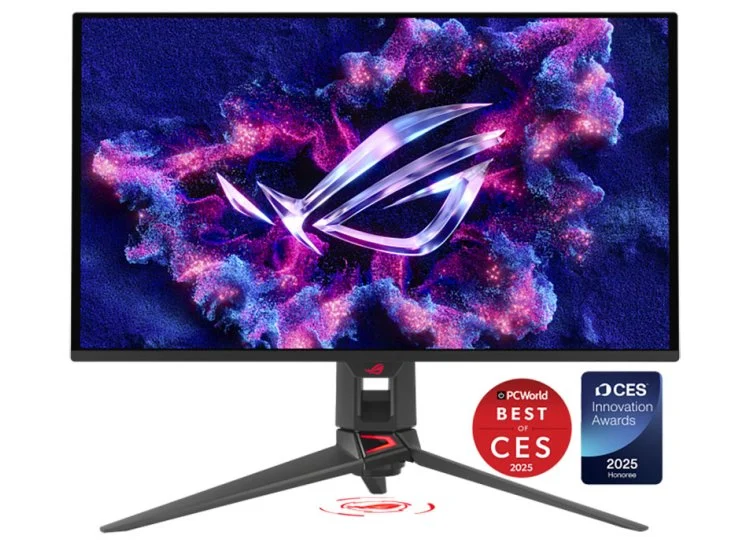
- Tip: Don’t forget to enable G-Sync (NVIDIA) or FreeSync (AMD) if your monitor supports it. These features sync the refresh rate to the GPU, reducing screen tearing and stuttering.
3. Ensure Your CPU Is Up to Speed
While the GPU plays a major role in gaming, your CPU is also crucial. Games are becoming more CPU-intensive, and if your processor is outdated, it could bottleneck performance. Look for multi-core processors like Intel’s i7/i9 or AMD’s Ryzen 7/9 series for better gaming performance.
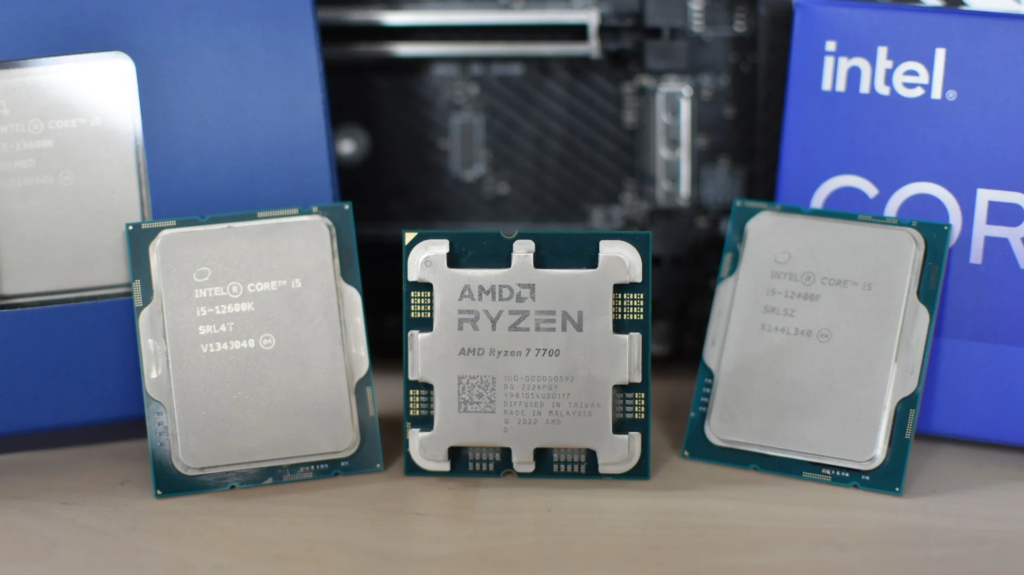
- Tip: If upgrading the CPU isn’t an option, make sure your system is running at peak efficiency by checking the CPU’s performance through the Task Manager (Windows) or Activity Monitor (Mac).
4. Upgrade Your RAM
Having enough RAM is key to reducing lag, especially in resource-heavy games. Ideally, you’ll want 16GB of RAM for modern gaming, though 8GB will still work for many titles. Make sure your RAM is running at the optimal speed supported by your motherboard and CPU for better performance.
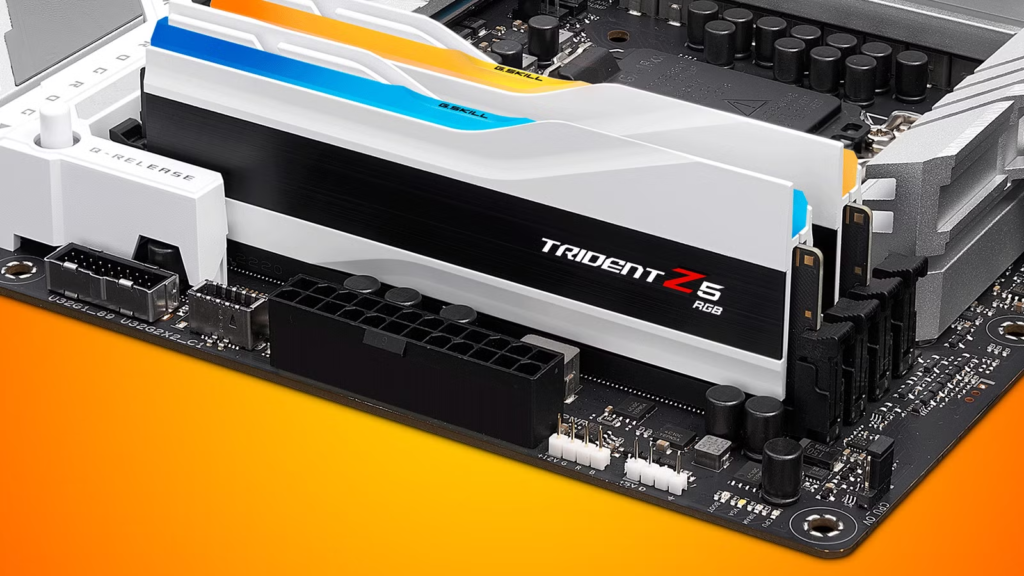
- Tip: If your RAM is older, consider replacing it with a faster version to boost overall system performance.
5. Update Drivers and Software
Keeping your drivers and software up to date is an easy way to get the best gaming experience. Manufacturers frequently release updates to optimize your GPU, CPU, and motherboard for the latest games.
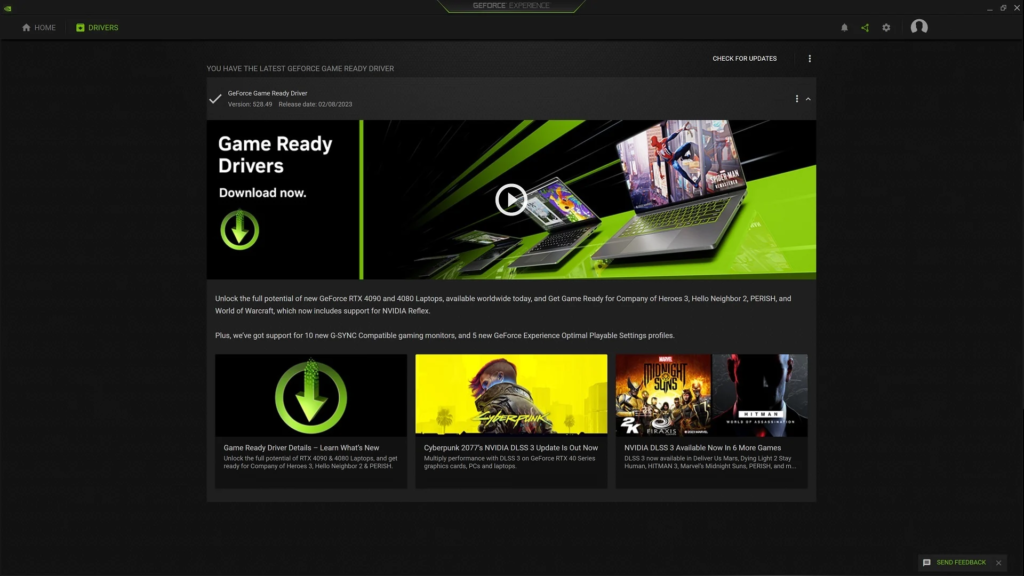
- Tip: Use GeForce Experience (for NVIDIA GPUs) or Radeon Software (for AMD GPUs) to keep your graphics drivers updated automatically. Don’t forget to update your operating system as well.
6. Optimize In-Game Settings
Sometimes, all it takes to improve your gaming performance is adjusting the in-game settings. Lower settings like shadow quality, anti-aliasing, and texture quality to improve frame rates without sacrificing too much visual fidelity. V-Sync can help prevent screen tearing, but it can sometimes cause input lag, so disable it if you want the fastest response times.
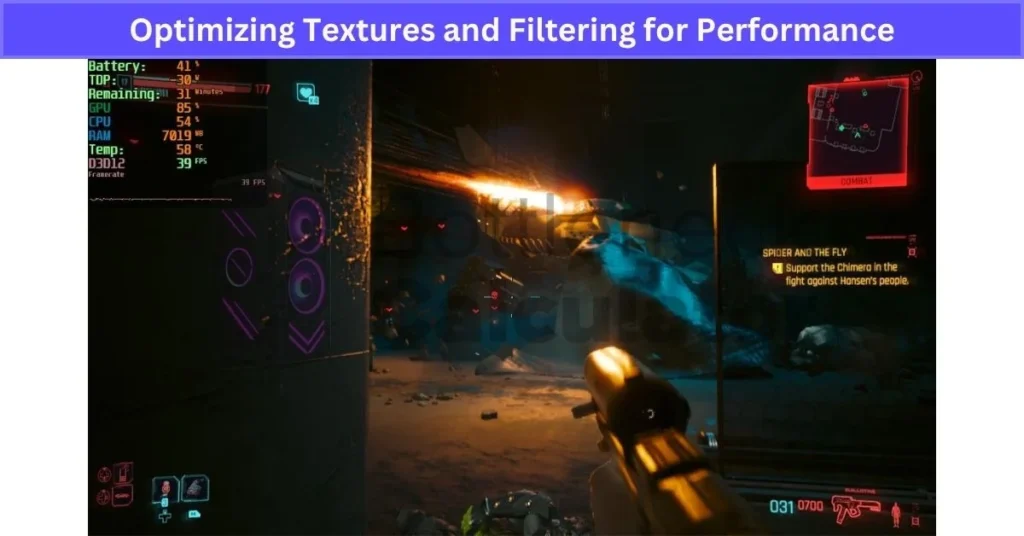
- Tip: Tools like MSI Afterburner allow you to tweak and monitor your GPU’s performance in real time while gaming.
7. Enable High-Performance Mode
Most computers run in balanced power mode by default, which may not be optimal for gaming. Switch your system to High Performance mode to get the most out of your hardware. On Windows, go to the Power Options in the Control Panel, and set your plan to High Performance.
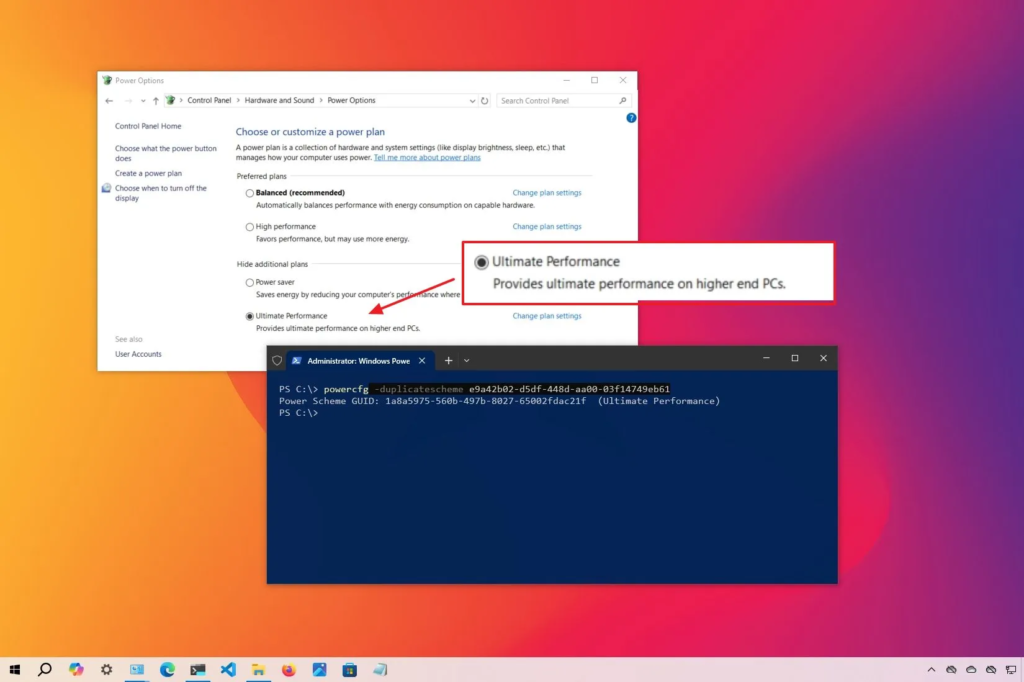
- Tip: For laptops, make sure your charger is plugged in, as running on battery power can throttle performance.
8. Use SSDs for Faster Load Times
Switching from a traditional hard drive (HDD) to a solid-state drive (SSD) can significantly speed up load times in games. SSDs have much faster read/write speeds, meaning faster boot times, quicker loading screens, and smoother performance overall.
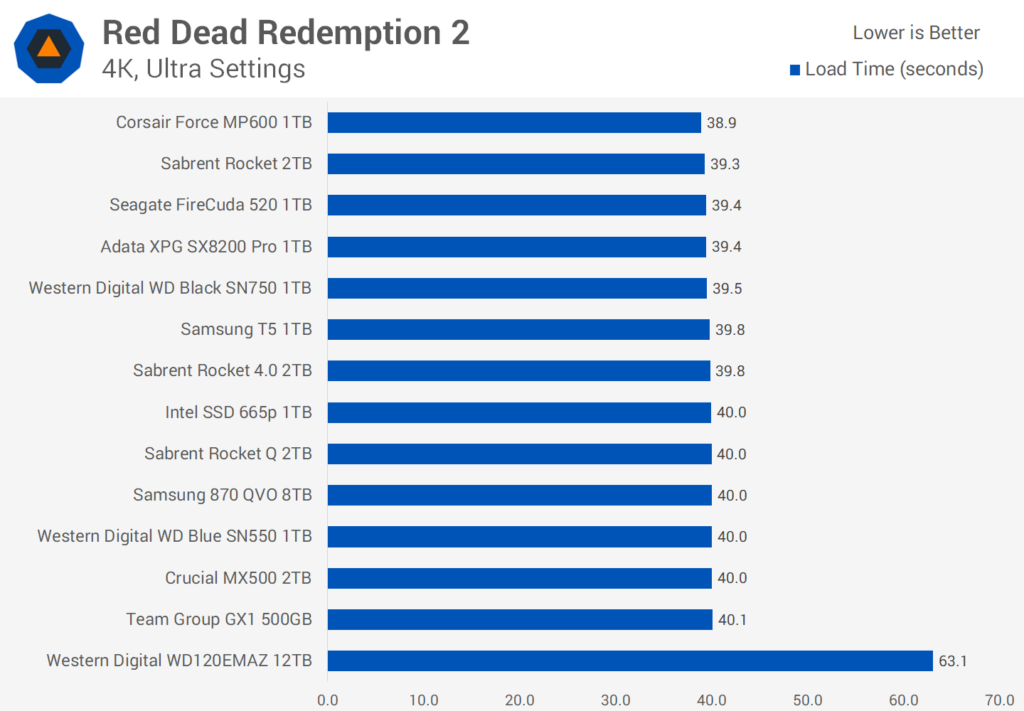
- Tip: If you can’t afford to put all your games on an SSD, prioritize installing your most-played games on it for quicker access.
9. Close Background Applications
It’s easy to forget that applications running in the background take up valuable resources. Before you dive into a gaming session, close unnecessary apps and browser tabs to free up system resources. Use Task Manager (Windows) or Activity Monitor (Mac) to see which apps are using the most CPU, RAM, and disk space.
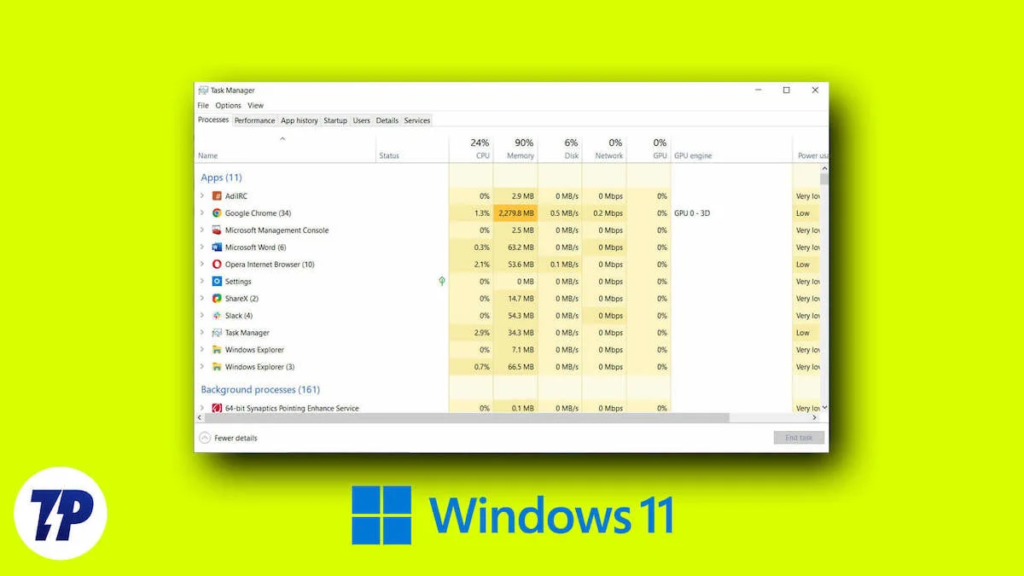
- Tip: Consider using Game Mode (Windows) to optimize your system by automatically disabling background apps and processes.
10. Keep Your System Clean
A clean computer is a fast computer! Dust buildup can cause your system to overheat, which can lead to thermal throttling, slowing down performance. Make sure your PC’s fans are working properly and clean out the dust regularly.
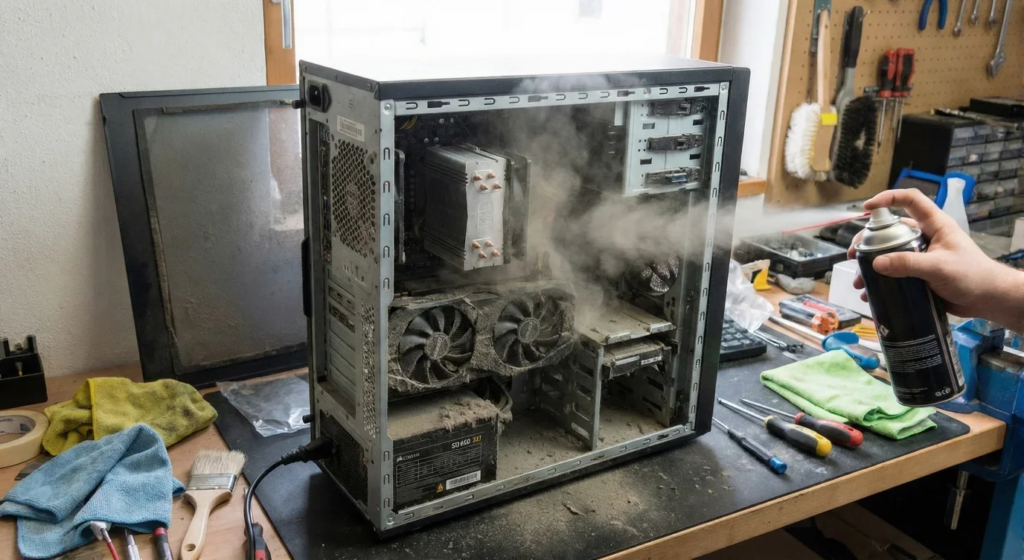
- Tip: Use compressed air to gently blow out dust from your PC’s internal components, especially the CPU and GPU fans.
Conclusion: Play Smarter, Not Harder
Optimizing your computer for gaming is a series of small steps that, when combined, make a big difference in your gaming experience. Whether you’re upgrading hardware or tweaking software, the goal is to get smoother, faster, and more immersive gameplay without constantly battling lag.
Follow these tips and get ready to level up your gaming experience after all, the best way to win is with a well-optimized system. Happy gaming! 🎮💥
